Manual, Desktop
How to use FindThings in a browser
Same map as the phone - keyboard, printer, and a wider screen.
Location-> Unit-> Asset-> Name
Example: Home -> Fire box -> Asset 3 -> Passport.
1. Start on a computer
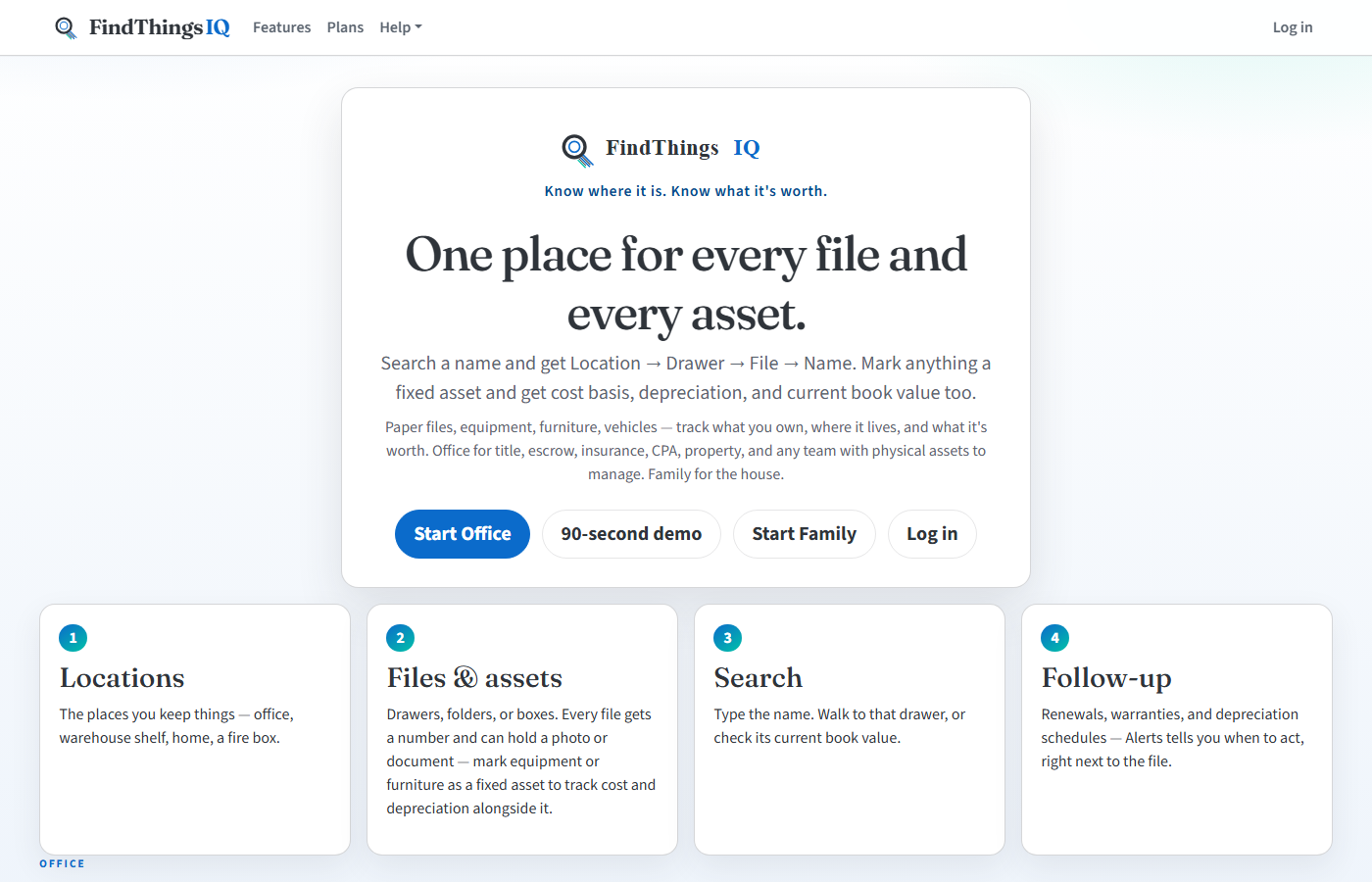
- Open www.findthingsiq.com in a normal browser tab (not the phone Home Screen icon; website and app subscriptions are separate).
- Log in with the email that owns or was invited to the space.
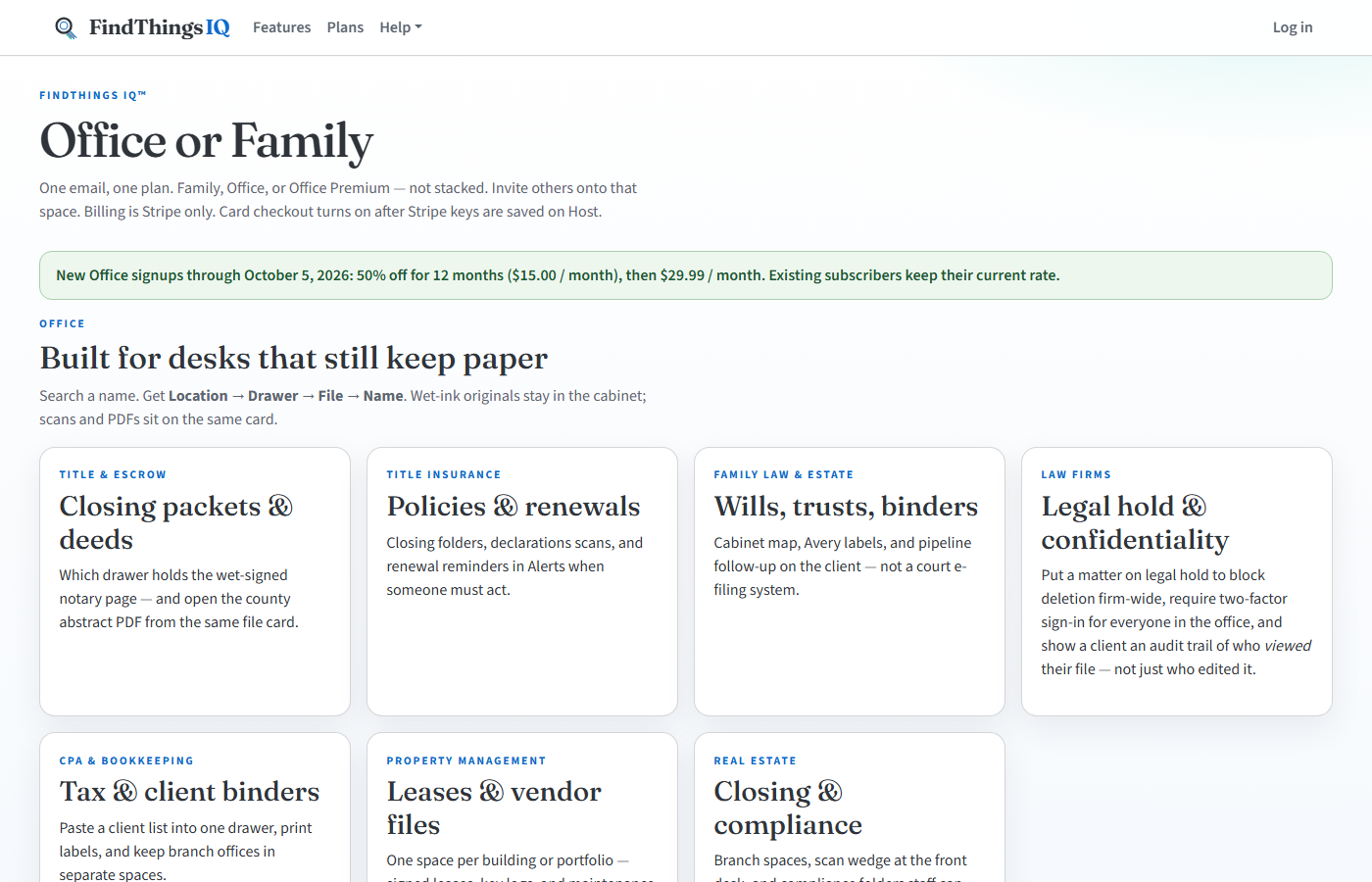
- New space: Plans, then Start free or Start Office.
First asset (new space)
After login, Find walks you through location, unit, and first asset. You name the unit yourself (Top drawer, Tax 2024). It is not pre-filled as "Drawer #1".
2. Desktop top menu
On a screen wider than about 900px, FindThings shows a top navigation bar instead of the phone tab bar at the bottom. The same tools exist on both; only the layout changes.

- Find - search a name.
- Scan label - type a label code or use a USB scanner.
- Asset room - see every unit and slot. Click an asset to open it. Click Empty to add one.
- Alerts - fired alerts (due reminders, due-back, renewal reminders, inventory). Add schedules under Tools, then Reminders.
- Tools - contacts, notes, vault, backup, and the rest.
- Reports - Inventory reports, and (when your role can see values) Depreciation report and Cost-to-keep report.
- Settings - plan, billing, invites, and sign-in. At the right of the top bar.
- Help - User Guide and Desktop Guide. Last item, at the right end of the top bar.
Space switcher
If you belong to more than one space, pick the space from the dropdown in the header (for example your main office vs a second site).
Who can do what
- Owner - invites, billing, catalog tier, delete space. Sees everything.
- Editor - add and change locations, units, assets, notes, reminders. Sees value and insurance details.
- Manager (Office Premium) - same day-to-day work as Editor, including checkout and inventory actions, but does not see value, depreciation, or insurance details on an asset.
- Field Worker (Office Premium) - can check items in and out and move them between units, but cannot add or change assets, and does not see value or insurance details.
- Viewer - search and read only. A banner appears until an Owner promotes them.
3. Daily loop on desktop
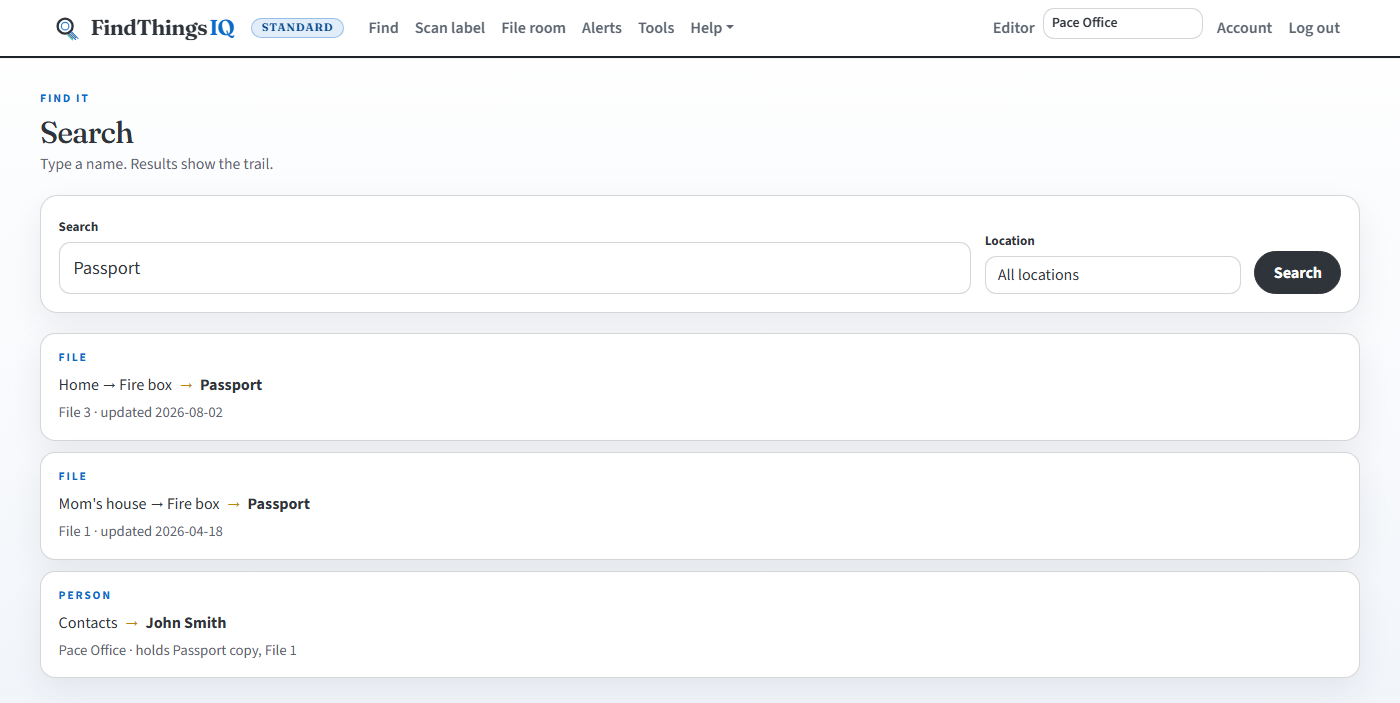
- Use the search box on Find.
- Type a name, a person, "who has the drill," or an asset number. Press Enter.
- Click the result. Assets always show Location, Unit, Asset, Name.
- Walk to that unit. If it changed units, Move. Office Premium can Check out if you take it.
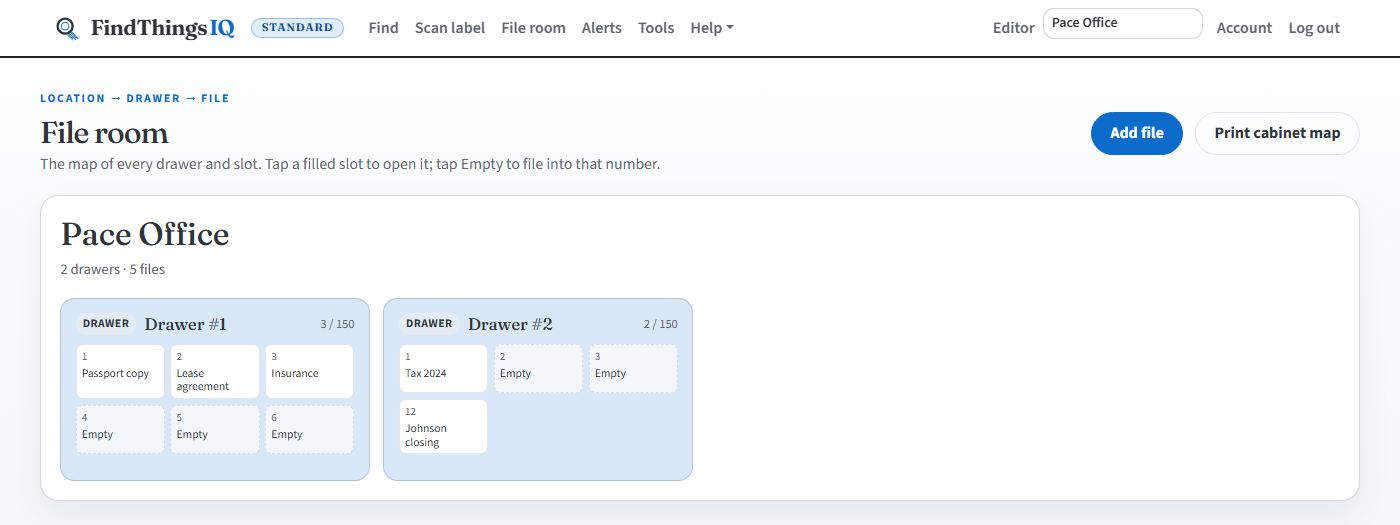
Empty slots (Editor) start a new asset in that number. Filled slots open the asset card. Selecting several assets at once on Asset room lets you move, check in, or delete them together with Bulk actions, instead of opening each one.
4. Add an asset
Asset room, then All assets, then add, or Find, then Add asset, or click an empty slot in Asset room.
- Pick a location, then a unit, aisle, folder, or box.
- Name the thing the way you will search it later: Passport, Johnson closing, Spare shed key.
- Leave asset number blank for the next empty slot (1 to 150, or up to 999 on Office if the Owner raised the cap on Account).
- Optional: photos and a document (PDF, Word, Excel, text, image, or zip, 7z, or rar).
- Save asset, then print a label.
To remove an asset, unit, or location, use Delete and type that name, or type delete all. Deletion is permanent and cannot be restored. Deleting a unit removes every asset in it. Deleting a location removes every unit and asset underneath it.
Office: Import unit list puts a list into one unit and opens the Avery sheet. Import assets loads a CSV from Excel: map the columns, preview every row, then apply. Existing assets match on asset code or serial number, a blank cell keeps the current value, and an asset is never moved to another unit.
Skip Warranty and insurance unless the object itself is covered. A policy paper is just an asset with a PDF and a reminder.
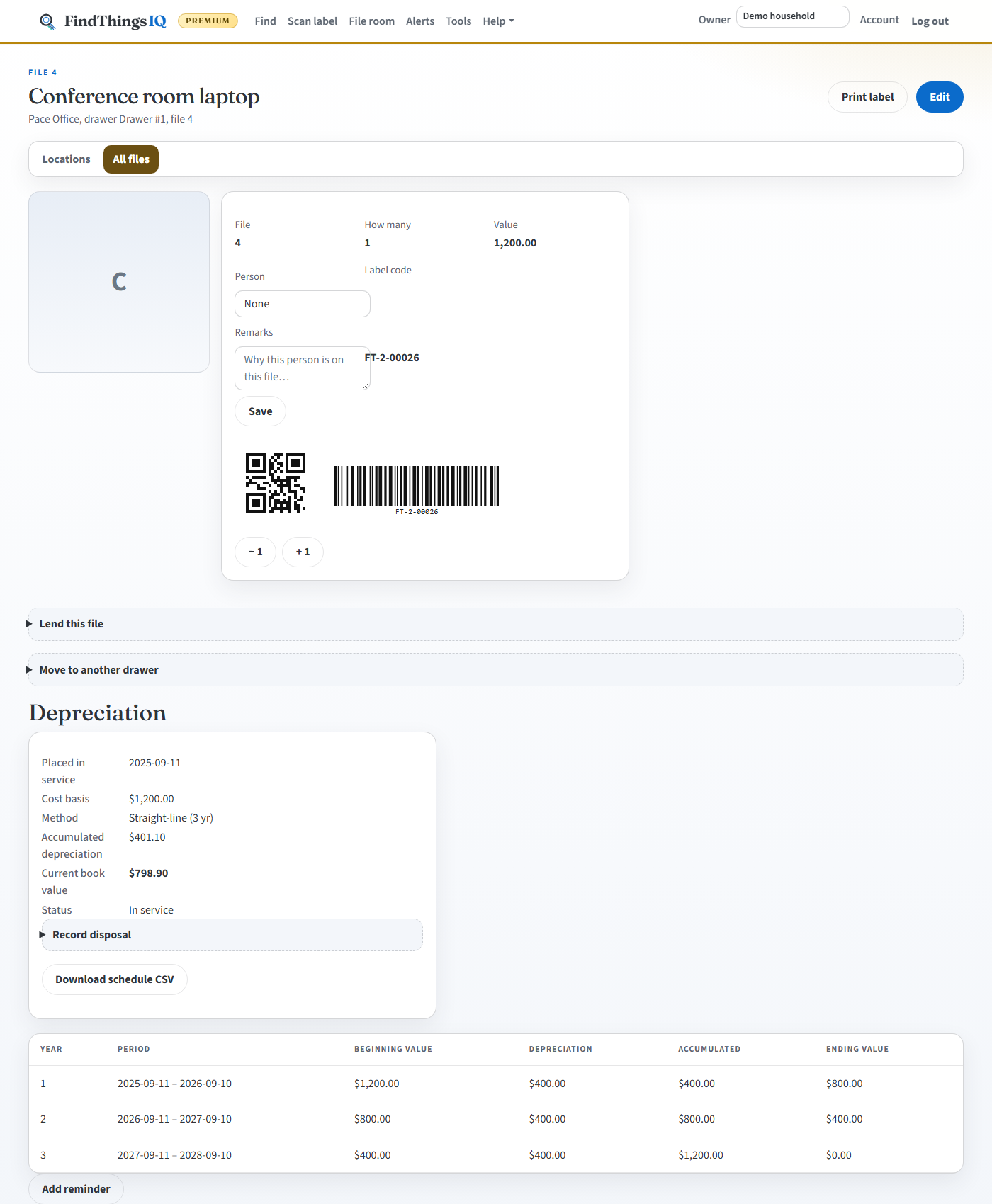
Equipment and depreciation (Office Premium)
Set Kind to Equipment on any asset's Create or Edit form to reveal cost basis, placed-in-service date, and a depreciation method (straight-line or MACRS, plus Section 179 or bonus depreciation). The asset card shows a live current book value and a year-by-year schedule with a CSV download; Record disposal works out gain or loss when the asset is sold or scrapped. Asset room has a Kind filter, and each card shows its book value. Reports, then Depreciation report rolls every piece of equipment in the space into portfolio totals, a by-category table, and its own CSV export.
Reports, then Cost-to-keep report compares each piece of equipment's current book value against what you are paying to insure it, so you can spot items that now cost more to insure than they are worth.
Repairs, meters, and maintenance due (Office Premium)
Open a work order on an equipment asset to mark it Under repair; add parts and costs, fix typos while it is open, then Close it to log the job as maintenance (cost included), set the next service date, and return the asset to service. Record a meter reading with a Service every interval to make maintenance due automatically; lower readings need a correction note. Reports, then Maintenance due shows everything overdue, due soon, past its meter interval, or with an open job.
Ownership, documents, and retirement (Office Premium)
Add serial number, purchase date, supplier, invoice or PO, department, assigned-to, and owner on the asset's Edit form. File manuals, calibration certificates, warranties, safety sheets, and insurance policy renewals on the asset (certificates, warranties, and renewals need an expiry date for reminders). Record disposal retires an asset: it is locked from check-out, move, and reservation, stops raising reminders, and leaves the Depreciation totals unless you tick Include disposed assets; Undo disposal reverses a mistake.
5. Desktop-only strengths
USB barcode scanner
Plug in a USB scanner, or pair a Bluetooth scanner as a keyboard. Set it to type the code and then press Enter, with no prefix. Open Scan label and scan. The cursor does not have to be in the box. A scan is ignored while a note or password is selected, so it cannot land in the wrong field. No camera and no extra program are needed. On a Zebra gun, use a DataWedge profile with keystroke output on, intent output off, and Enter turned on, associated with Chrome.
Print labels and cabinet map
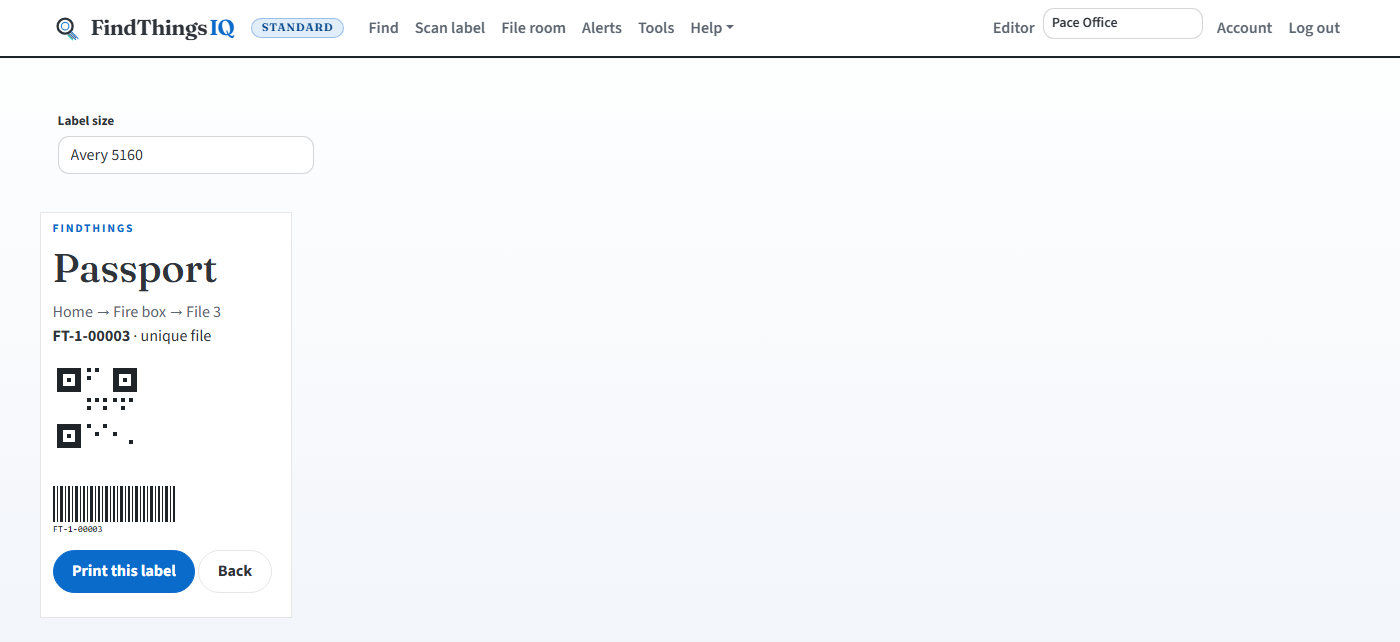
Label sizes: FindThings 2-up sheet, Avery 5160, 5163, 5167. Use the browser print dialog (Ctrl+P on Windows, Cmd+P on Mac). Load the matching Avery paper in your printer.
Asset room, then open a location, then Print cabinet map to tape Location, units, and asset numbers inside the cabinet door.
Inventory count (Office Premium)
Tools, then Inventory count. Paste many codes at once (one per line) or scan with a wedge. Count history keeps past walks.
Asset audits (Office Premium)
Tools, then Asset audits. Choose a location or a department, scan each asset, then sign off. Found, missing, and misplaced results are written into the tamper-evident activity log. Not verified in 12 months lists assets in service with no found result on a signed audit in the last year.
CSV import and reports (Office Premium)
Tools, then contacts CSV import (Office Premium) when you need many contacts at once. Reports in the top bar has inventory summaries, the depreciation report, and Cost-to-keep. These workflows are easier on a wide screen with a keyboard.
Move, lend, and reserve (Office Premium)
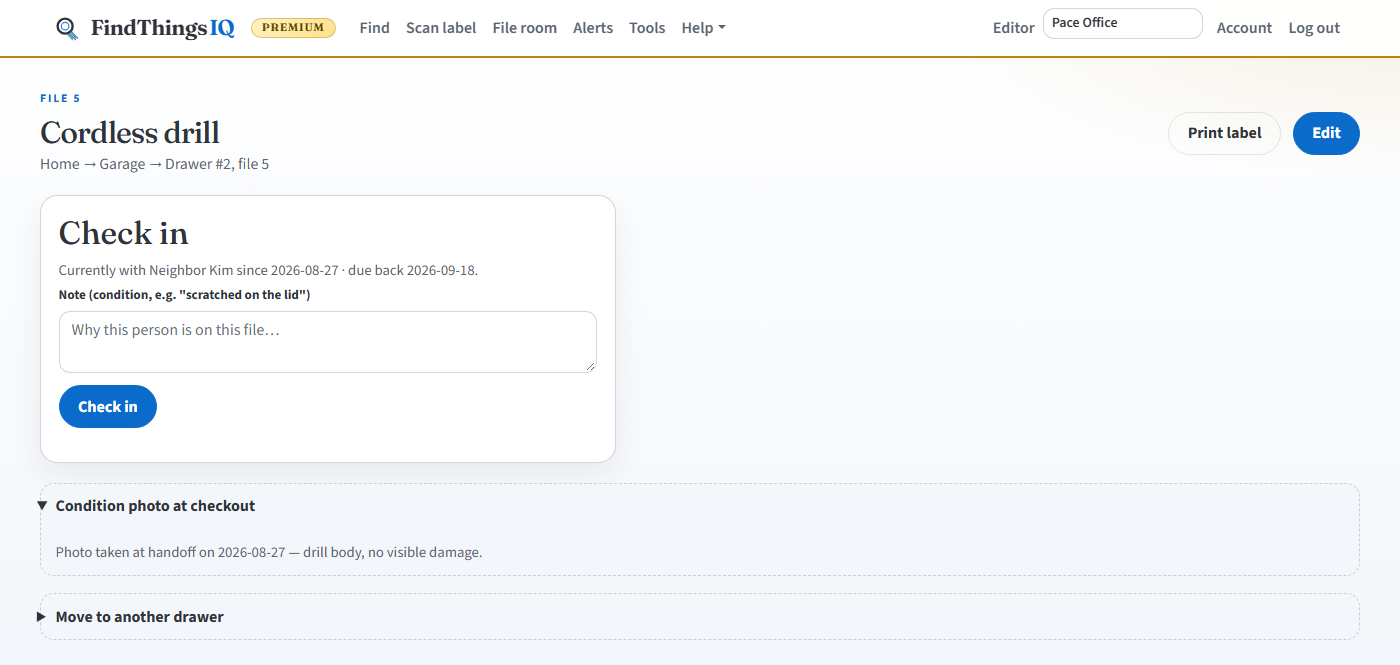
Move is on every asset card: pick a new unit; FindThings asks before renumbering if the slot is taken. Check out (Office Premium) lends to a team member, contact, or typed name. Set Due back, and optionally attach a condition photo at checkout or check-in so there is a record of the item's state at handoff. Check in when it returns. If you just need to hold an item for a future date without checking it out yet, use Reserve; FindThings blocks a second reservation that overlaps an existing one on the same item. Report missing is its own tab on the asset page, next to Activity and Attachments. It freezes the asset, writes off its book value, tells the managers, and opens the insurance claim packet. A checkout more than 14 days past due is flagged Probably lost and the daily due-back reminder stops.
Alerts and reminders
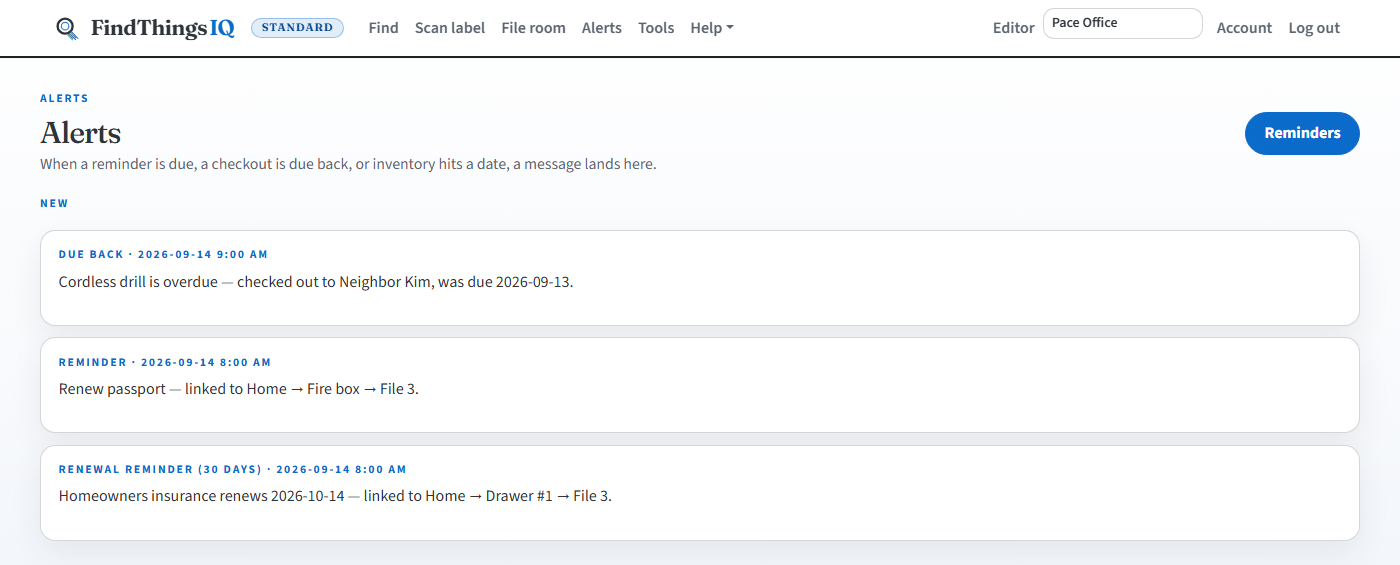
Alerts in the top bar shows fired alerts. Tools, then Reminders to schedule bills, licenses, insurance, or maintenance. When one is due, a copy lands in Alerts. Link a reminder to an asset so the message includes the unit trail. For anything marked insured, under warranty, or with a license or renewal date, FindThings also sends its own automatic reminders at 90, 60, and 30 days out, even if nobody sets a manual one. Account, then Alerts I receive, limits that to your assets, to high priority, or to one daily digest. A calibration certificate still open a week after its 30-day reminder escalates to the owners and managers. A work order on a covered asset shows the warranty end, the vendor, and the claim; recovered money lowers Cost-to-Keep. Tools, then People across sites, invites one person to several sites you grouped, and deactivates one person on every site you grouped.
6. Account, backup, shared computers
- Account (Owner) - invite Editor, Manager, Field Worker, or Viewer, change Office or Office Premium (one plan at a time; Plus is $149, not added on top), extra storage, billing. One email owns one subscription. Stripe: add a payment method to start the 14-day trial (Asset room stays closed until then), then billing is monthly; Cancel subscription on Account (ends last day, no refunds). After that day, FindThings opens only to pay.
- Tools, then Backup - download the backup zip (not CSV alone). Zip restore is operator-only; contact FindThings support if you need photos or policies put back.
- FindThings staff: More, then Dashboard for paid, trial, and canceled counts, space details, and follow-up notes (not customer files).
- Account (top right) - phone, password, authenticator app (scan a QR code), and plan for Owners. With two-factor on, the code page also offers Email me a code instead and Send an approval to my other device (tap the matching number in the notification); Remember this browser is ticked by default. Log out on a shared PC when you are done.
- Contacts, Org chart (Office Premium), Notes (Office Premium), Password vault (Office Premium), all under Tools. Office also has Follow-ups for client follow-up on the same map.
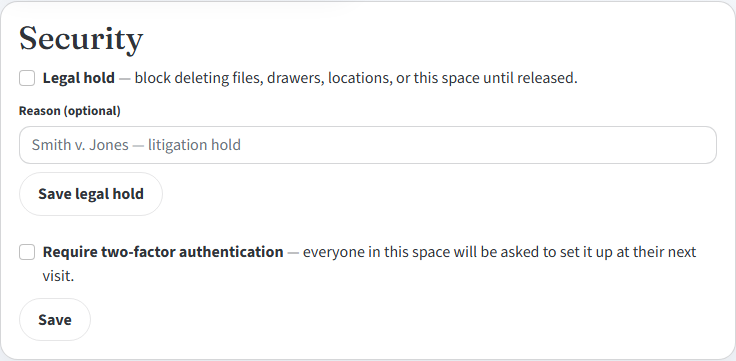
- Security (Owner, Office Premium, on Settings) - Legal hold blocks every delete (assets, units, locations, and the space itself) firm-wide until an Owner releases it; Require two-factor sign-in forces every member to set up authenticator-app 2FA before they can use the space. Useful for law firms and any office that needs to show a client real access controls.
- Activity log (Tools, Office Premium) - logs every add, edit, and delete, and on Office Premium also a Viewed entry each time someone opens an asset's or contact's details page. That gives a full record of who looked at this, not just who changed it.
Efficient desktop habits
- Keep a browser bookmark to the live site, not localhost.
- Print labels from the desk the day you add them; wedge-scan once to trust the loop.
- Paste a unit full of codes into Count instead of tapping one by one on phone.
- Open Alerts when the badge is on, before hunting the house.
- Use Cabinet on a large monitor to see empty slots while filing paper.