Manual
How to use FindThings
When to service it, which document governs it, and which unit to open — for equipment and files, in an organization of any size.
Location-> Unit-> Asset-> Name
Example: Home -> Fire box -> Asset 3 -> Passport.
1. Start: install, log in, first asset
Welcome
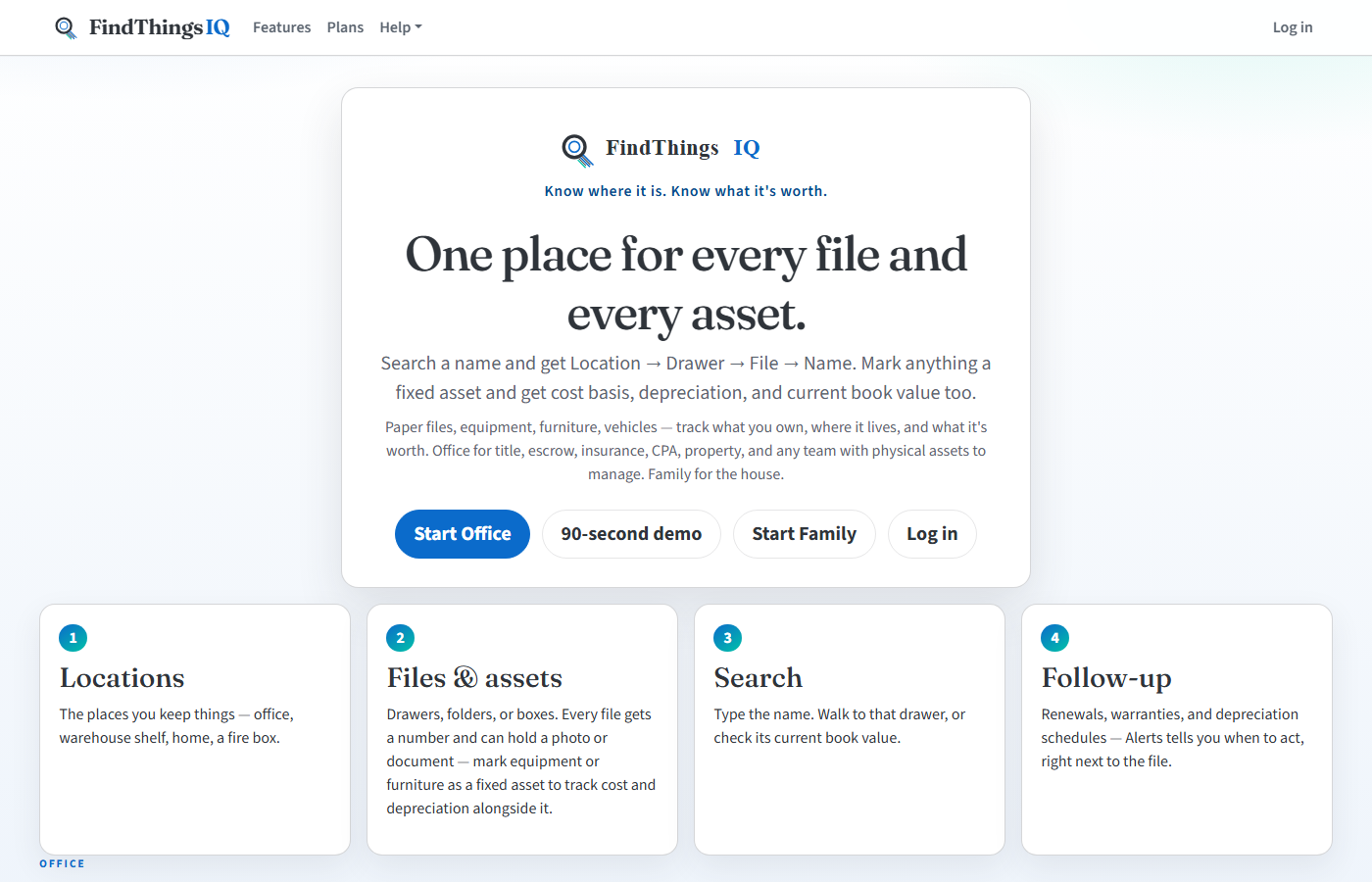
- Open www.findthingsiq.com (the live site).
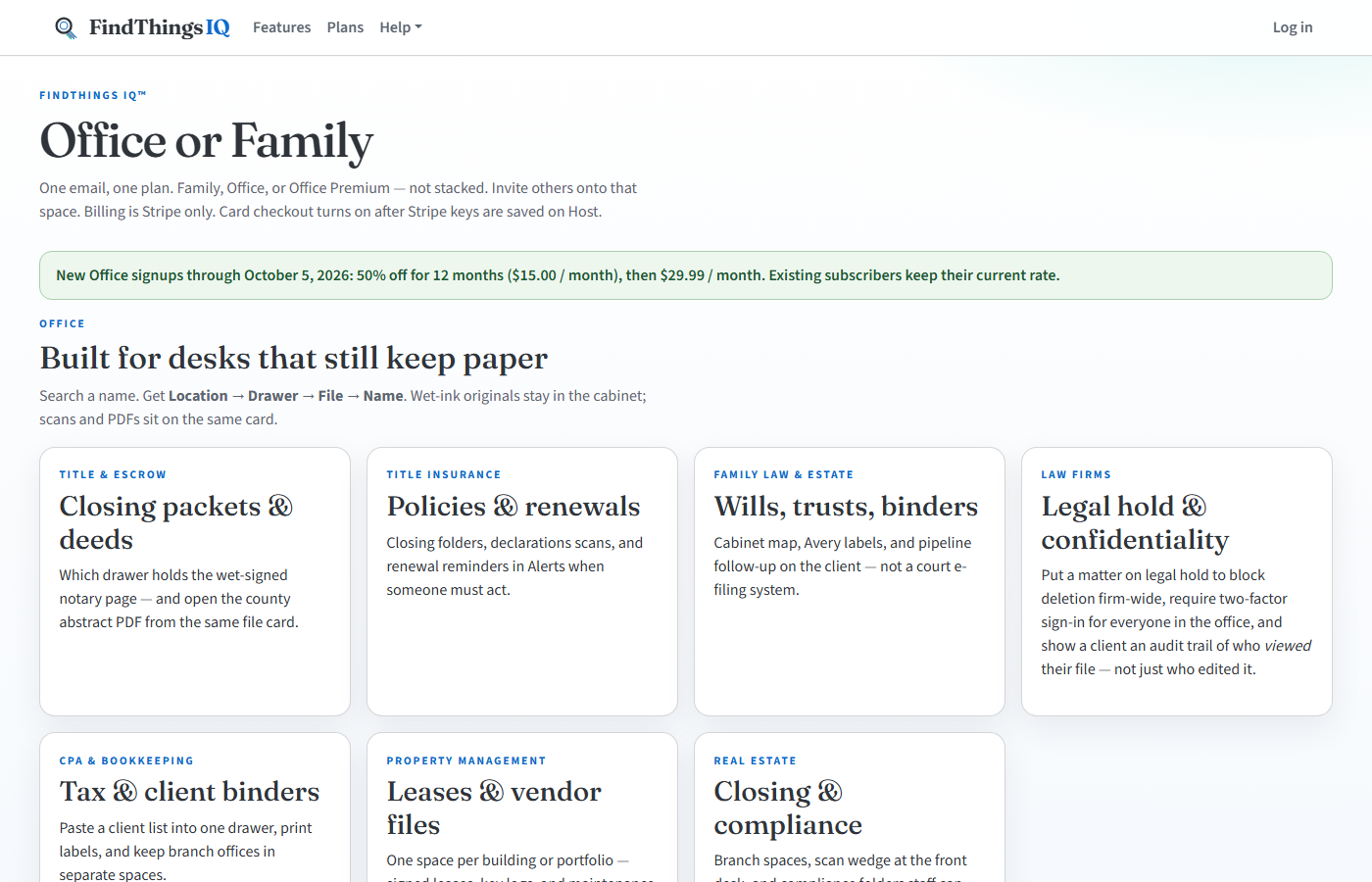
localhoston a PC will not open on the phone. - Choose Free or Office on Plans if you do not have a space yet.
- Log in with the email that owns or was invited to the space.
On the iPhone
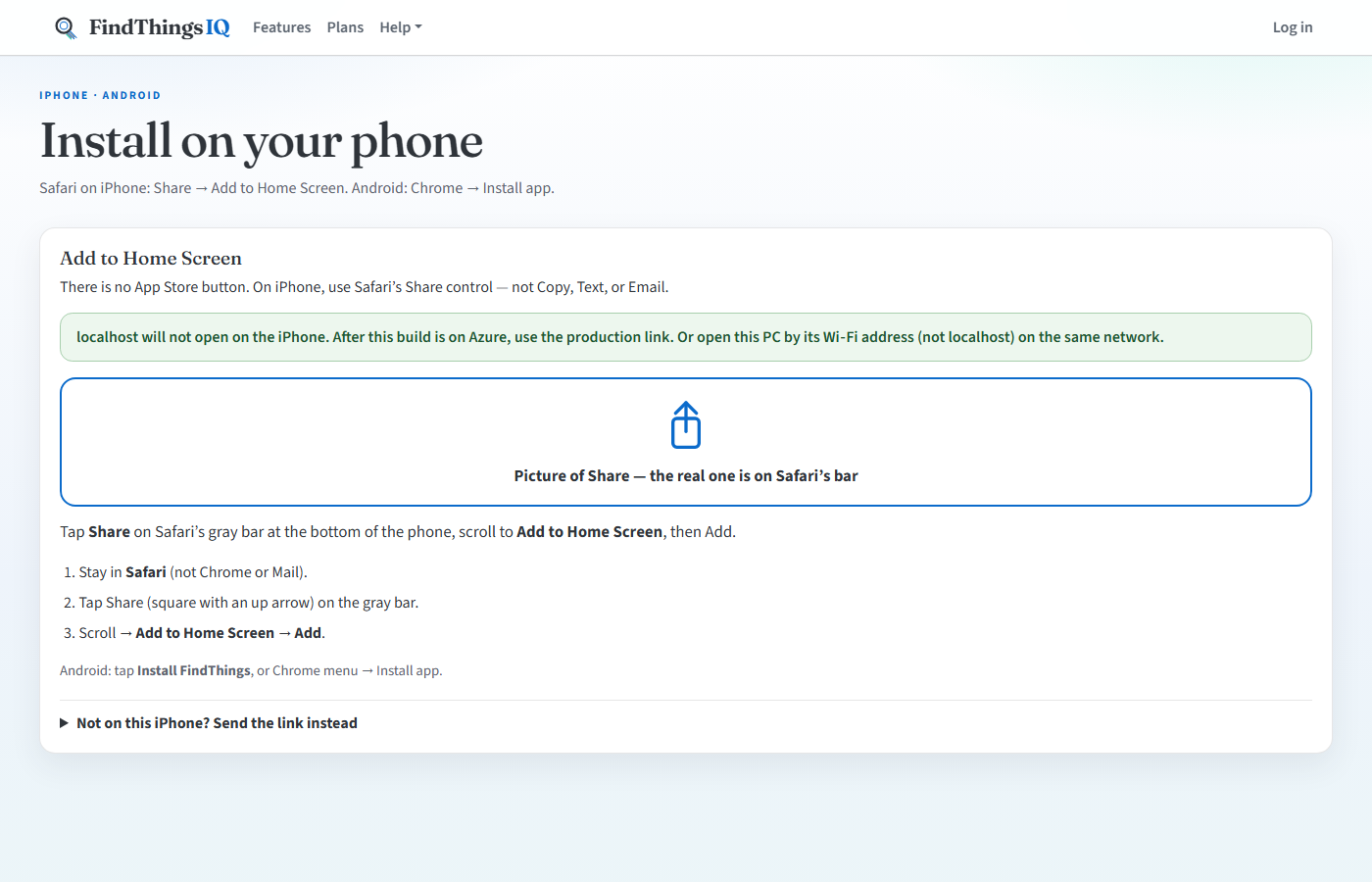
There is no App Store listing. Open Install in Safari, then Share, then Add to Home Screen. Android: Chrome, then Install app.
First asset (new space)
After you subscribe and log in, Find shows three steps until one asset exists:
- Location - the building or room (Front office, Home, Mom's house).
- Unit - you type the name (Top drawer, Tax 2024, Fire box). It is not filled in as "Drawer #1".
- First asset - one named thing in a numbered slot. Print a label, stick it, then Scan.
2. Phone buttons
After you log in, five tabs sit at the bottom of the phone:
On the phone and on a computer, Tools opens the full tools list (reminders, contacts, notes, vault, backup). Help has User Guide and Desktop Guide.
- Find - search a name (who, what, asset number).
- Asset room - see every location, unit, and slot. Tap an asset to open it. Tap Empty to add one.
- Scan label - camera, USB scanner, or type a code. Opens that asset.
- Alerts - fired alerts: due reminders, due-back checkouts, renewal reminders, inventory (even when email is off). Schedules live under Tools, then Reminders until they fire.
- Tools - reminders, contacts, notes, vault, backup, and the rest.
- Help - User Guide and Desktop Guide.
On a computer, the top menus are Find, Scan label, Asset room, Alerts, Tools, and Reports. Settings and Help sit at the right, with Help at the far end.
Who can do what
- Owner - the organization’s space, invites, billing, delete space. Sees everything.
- Editor - add and change locations, units, assets, notes, reminders. Sees value and insurance details.
- Manager (Office Premium) - same day-to-day work as Editor, including checkout and inventory actions, but does not see value, depreciation, or insurance details on an asset.
- Field Worker (Office Premium) - can check items in and out and move them between units, but cannot add or change assets, and does not see value or insurance details. Built for staff who handle equipment but should not see what it cost or how it is insured.
- Viewer - search and read only (a sibling in another city). A banner says so until an Owner promotes them.
If you belong to more than one space (for example your main office and a second site), switch spaces with the name dropdown in the header.
3. Daily loop: search, open, act
- On Find, type a name, a person, "who has the drill," or an asset number. Or open the full search page from Find.
- Tap the result. Assets always show Location, Unit, Asset, Name.
- Walk to that unit. The paper or object is in that asset number.
- If it moved units, Move on the asset card. To lend it, Office Premium has Check out.
Search also finds people in Contacts, diary notes, reminders, org-chart names, and who borrowed an item.
Report missing (Office Premium) is its own tab on the asset card. It freezes the asset, writes off the remaining book value, tells the managers, and opens the insurance claim packet. A checkout more than 14 days past due is flagged Probably lost and the daily due-back reminder stops.
Asset room is faster when you already know the units: pick a location, see each slot. A filled slot opens the asset. An empty slot (Editor) starts a new asset in that number.
4. Add an asset
Find, then Add asset, or Asset room, then All assets, then add, or tap an empty slot in Asset room.
- Pick (or type) a location, then a unit, aisle, folder, or box.
- Name the thing the way you would search it later: Passport, Johnson closing, Spare shed key.
- Leave asset number blank to take the next empty slot (1 to 150, or up to 999 on Office if the Owner raised the cap).
- Optional: photos and a document of the paper in that slot (PDF, Word, Excel, text, image, or a compressed file such as zip, 7z, or rar).
- Save asset, then print a label and stick it on the real folder or object.
To remove an asset, unit, or location, use Delete and type that name, or type delete all. Deletion is permanent and cannot be restored. Deleting a unit removes every asset in it. Deleting a location removes every unit and asset underneath it.
Office: Asset room, then Import unit list to add a list into one unit, then print the Avery sheet.
Tools, then Category fields, defines the facts a category requires: text, number, date, or a pick list. Those values are searched, imported with the asset spreadsheet, printed on the label, and listed on the inventory report.
Tools, then Import assets, loads a CSV saved from Excel. Map the columns, preview every row, then apply. Existing assets match on asset code or serial number. A blank cell keeps the current value, and an asset is never moved to another unit. Put category facts in the Custom fields column as Name: value, one per line. Download the asset spreadsheet when you want a file you can edit and import again.
Still keep the official paper in the real unit. A photo or PDF in FindThings is a copy, not the vault of record.
Skip Warranty and insurance unless the object itself is covered. A policy paper is an asset plus a reminder.
Equipment and depreciation (Office Premium)
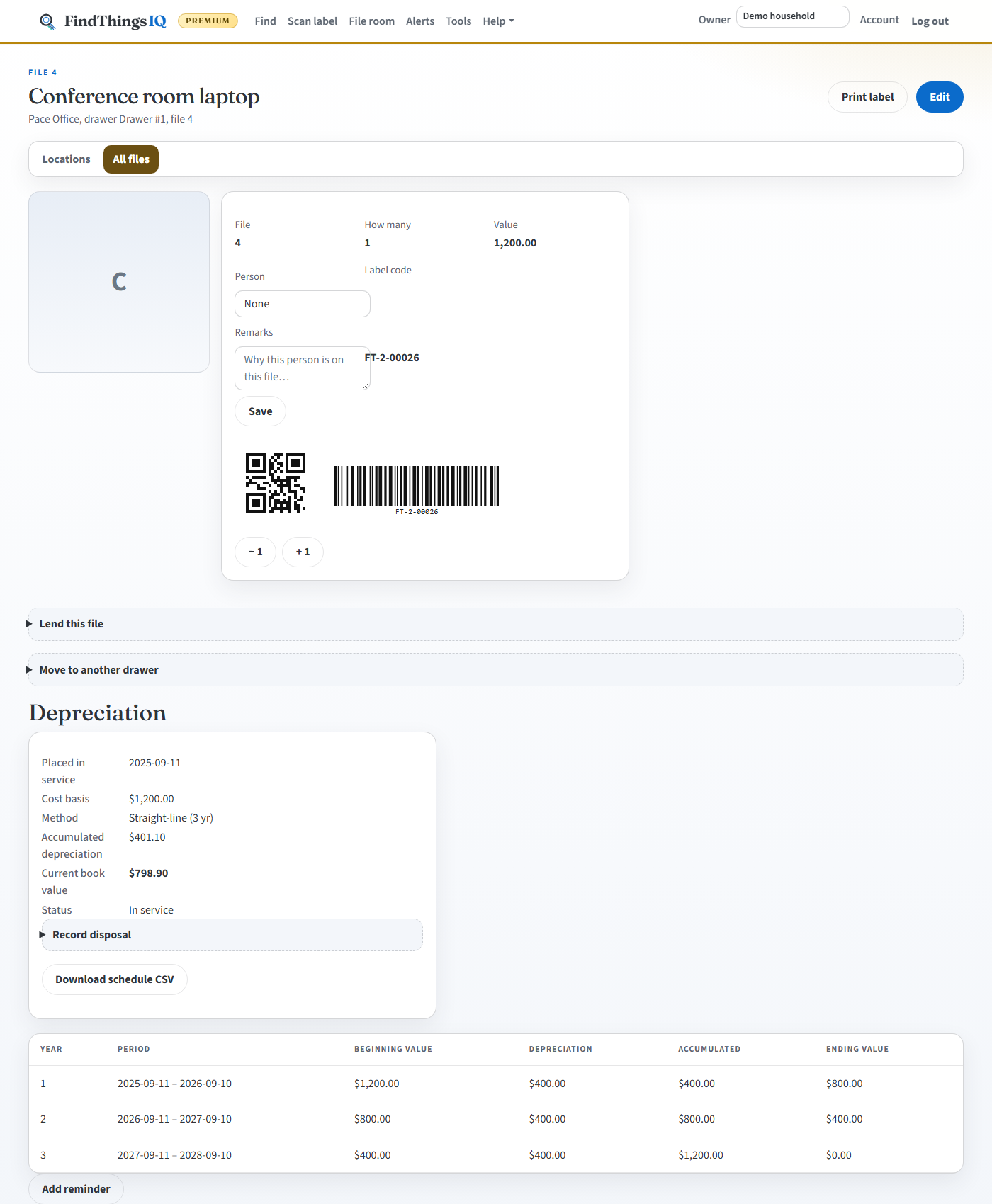
Equipment, furniture, and vehicles are the same asset record - just set Kind to Equipment when you add or edit it. That reveals cost basis, placed-in-service date, and a depreciation method (straight-line or MACRS, with Section 179 and bonus depreciation if you use them). The asset card then shows a live current book value, a full year-by-year schedule you can download as CSV, and a Record disposal button for when you sell or scrap it (it works out the gain or loss for you). Asset room's Kind filter shows just your equipment, with each card's book value.
Reports, then Cost-to-keep report lines up each piece of equipment's current book value against what you are paying to insure it, so you can see at a glance which items cost more to keep insured than they are now worth.
Repairs, work orders, and meters (Office Premium)
On an equipment asset, Open a work order for a repair job: a title, an optional failure code, hours of downtime, parts, and (for roles that see costs) labor and parts cost. Set an hourly labor rate under Account and closing a job with no labor cost typed in uses the hours logged on that job. Set a cost per hour of downtime on the asset and Maintenance KPIs and Repair or replace show lost production in dollars. If the asset is still under warranty, the card says under warranty until that date, names the vendor, and points at the claim. Record the claim status and the recovered cost; a paid recovery lowers Cost-to-Keep. Opening one marks the asset Under repair. While it is open you can fix typos, add or remove parts, or cancel it if it was opened by mistake. Close it when the job is done: FindThings logs it as maintenance with the total cost (so it shows in the Cost-to-keep report), sets the next maintenance date, and puts the asset back in service once no other job is open. A closed work order is frozen so the record stays trustworthy.
Record a meter reading (hours or cycles) and set Service every. When the reading passes the last service by that amount, maintenance becomes due and the usual 90/60/30-day alerts fire. It stays due until someone logs the service. A reading lower than the last one is refused unless you tick This corrects an earlier reading and add a note, such as "meter replaced". Readings are never edited or deleted.
Reports, then Maintenance due lists equipment that is overdue, due in 7, 30, 60, or 90 days, past its meter interval, or has an open work order. Retired equipment is left out.
Serial, purchase, and who is responsible (Office Premium)
Equipment records can carry a serial number, purchase date, supplier, invoice or PO number, department, who it is assigned to, and its owner (the person accountable for it). Supplier, assigned-to, and owner come from Contacts. Check-out still shows who has it right now.
Manuals, certificates, and warranties (Office Premium)
File a Manual, Calibration certificate, Warranty, Safety sheet, or Insurance policy renewal on the asset. Certificates, warranties, and policy renewals need an expiry date so FindThings can remind you at 90, 60, and 30 days. Keep the policy PDF itself in one place: Coverage PDF under Warranty & insurance on Edit.
Retiring or selling equipment (Office Premium)
Record disposal with a date and proceeds. The asset must be checked in and have no open work orders; upcoming reservations are cancelled for you. It becomes Retired: it cannot be checked out, moved, or reserved, it stops raising reminders, and it drops out of the Depreciation report totals (tick Include disposed assets to see it). The report's Disposals table shows each gain or loss. Recorded it by mistake? Use Undo disposal.
5. Move, lend, and reserve (Office Premium)
Open the asset card (search, scan, or Asset room).
Move it to another unit
- On the asset card, Move, then pick the new unit.
- Leave Keep asset number checked if you want the same number in the new unit.
- If that number is already taken, FindThings stops and asks. It will not silently renumber.
- Selecting several assets at once on Asset room lets you move, check in, or delete them together with Bulk actions, instead of opening each asset one at a time.
Lend it (Office Premium)
- Check out, then pick a team member, someone in Contacts, or type a neighbor's name.
- Set Due back if you want an Alerts entry.
- Add a condition photo when you check something out or back in, so there is a picture of the state it was in at handoff.
- When it returns, Check in on the same card.
Reserve it for later (Office Premium)
Do not need it checked out today, just booked for a future date? Use Reserve on the asset card to hold it for a date range. FindThings blocks a second reservation that overlaps an existing one, so two people cannot book the same item for the same days by mistake.
Overdue loans, and reservations starting soon, appear on Find and in Alerts. If mail is configured on Host, the team also gets a due-back or reminder email.
6. Scan, print, count
Scan
Tab Scan label (or Find, then Scan label). Allow the camera, type the code, or use a USB or Bluetooth scanner. The scanner works without clicking the box. A scan is ignored while a note or password is selected. A match opens the asset card.
Print a label
Asset card, then Print label. Sizes:
- FindThings 2-up sheet
- Avery 5160 - about 1 inch by 2 and 5/8 inches, 30 per letter sheet
- Avery 5163 - 2 inches by 4 inches, 10 per letter sheet
- Avery 5167 - about 1/2 inch by 1 and 3/4 inches, return address size
Tools, then Print cabinet map tapes Location, units, asset numbers, and barcodes inside the cabinet door.
Inventory count (Office Premium)
- Tools, then Inventory count (or scan the unit QR on the cabinet map).
- Start the camera and scan every label in that unit, or paste codes, one per line.
- Finish count. Missing items and anything that belongs in another unit are listed.
- Count history keeps past walks.
Asset audits (Office Premium)
Tools, then Asset audits. Choose a location or a department, scan each asset, then sign off. Found, missing, and misplaced results are written into the tamper-evident activity log. Not verified in 12 months lists assets in service with no found result on a signed audit in the last year.
7. Alerts, reminders, people
Alerts
Tab Alerts. When a reminder is due, a checkout is due back, a reservation is starting soon, or inventory hits a date, a message lands here. Mark read or delete when you have acted. Email is extra when Host mail is on.
Reminders and automatic renewal alerts
Tools, then Reminders, then Add reminder. Types: bill, license/passport, insurance, maintenance, medicine nudge, other. Link the reminder to an asset so the message includes the unit trail. When due, a copy also lands in Alerts. Snooze is plus 1 day. Medicine is a clock only, not medical advice and not a dose record.
For anything you mark as insured, under warranty, or with a license or renewal date, FindThings also sends its own reminders on its own schedule, at 90, 60, and 30 days before the date, so a policy or warranty does not lapse just because nobody set a manual reminder for it. On Account, Alerts I receive can limit that to your own assets, to high priority only, or to one daily digest. A calibration certificate still open a week after its 30-day reminder escalates to the owners and managers.
Contacts, people, organization
- Contacts (Tools) - people you lend to or attach to an asset (insurer, vendor, relative). On Office, add a type and use Follow-ups so work sits with the unit trail.
- Org chart (Office Premium) - who reports to whom, from the same contacts list.
- People across sites (Owner, Tools) groups the sites you own; you become the organization admin and can name other admins. An admin invites a person once to several sites, and deactivates a person once so they lose every site in that group, including a later invite, until you reactivate them.
- Account (Owner) - invite Editor, Manager, Field Worker, or Viewer by email; raise asset-number cap on Office. One email owns one plan: switch Office or Office Premium here (everyone on the space gets it; Plus is $149 by itself). When Stripe is on: add a payment method to start the 14-day trial. Asset room and search stay closed until then, then billing is monthly. Cancel subscription on this same Account page (ends last day, no refunds). After the last paid day, FindThings opens only to pay.
- Notes (Office Premium) - Shared notes (dated, visible to Editors) and, for Owners, Private notes (encrypted, Owner only). Example: "renewed insurance, copy in Fire box Asset 3". Do not store bank or Wi-Fi passwords here; use the password vault.
Security: legal hold and required two-factor (Office Premium)
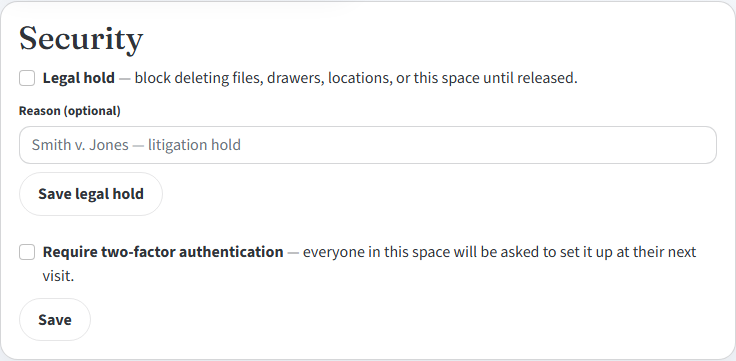
Owners get a Security section on Settings. Legal hold blocks every asset, unit, and location delete firm-wide (and blocks the space from being deleted) until an Owner turns it off, for a matter under litigation hold. Require two-factor sign-in forces every member to set up authenticator-app 2FA before they can use the space at all. Both are aimed at offices, especially law firms, that need to show a client real access controls, not just a password.
Office Premium spaces also log a Viewed entry (who, and when) every time someone opens an asset's or contact's details page, not just when it is edited. That view trail sits on the same Activity log as everything else, under Tools.
8. Backup, account, Tools
Tools, then Backup and export. Download the backup zip (assets, photos, policies, reminders, diary, directory). A CSV of names is not a full restore. To merge a zip back in, contact FindThings support; only the operator can restore.
Settings in the top bar is for phone, password, authenticator app, and (Owners) plan, billing, and invites. Log out when you are done on a shared computer.
Signing in with two-factor on a phone: on the code page tap Email me a code instead (the code arrives by email and your keyboard can fill it in), or Send an approval to my other device and tap the matching number in the notification. Remember this browser is ticked, so you are only asked once.
Owners: Settings to cancel or change the plan. FindThings staff: Tools, then Dashboard / Look up a login / Users / Host / Billing (operator only). Lookup is for production support by email; it does not show assets, vault, or diary.
Efficient habits
- Name assets the way you will search them six months from now.
- Print the label the day you add it; scan once so you trust the loop.
- If an asset changes units, Move it on the card.
- Open Alerts when the badge is on, before hunting the house.